

Images guide
YouTube Thumbnail Size Guide: Dimensions & Aspect Ratio
YouTube recommends a 3840 × 2160 pixel, 16:9 thumbnail for regular videos. Shorts use a vertical 9:16 design; check current YouTube upload requirements before publishing.
By FreeToolsNexus Team · Last updated
Try the tool
- Image Resizer Resize images by exact pixels, a percentage, or a social-media preset — with aspect-ratio lock and batch ZIP output, all in your browser.
- Image Cropper Crop an image with a draggable box and aspect-ratio presets, rotate and zoom, and export at full resolution — privately in your browser.
- Image Format Converter Batch convert images between JPG, PNG, WebP and AVIF — with quality control, resizing and ZIP download, entirely in your browser.
- Image Compressor Reduce image file size with an adjustable quality slider — processed entirely on your device.
Last verified: October 22, 2026, against YouTube Help’s “Add or edit a video thumbnail” guidance. Requirements can change, so confirm them before uploading.
Quick answer: YouTube thumbnail specs
| Spec | Regular video | YouTube Short |
|---|---|---|
| Recommended resolution | 3840 × 2160 px | 2160 × 3840 px |
| Recommended aspect ratio | 16:9 | 9:16 |
| Minimum size | 640 px wide | 640 px tall |
| File formats | JPG or PNG | JPG or PNG |
| Maximum file size from mobile | 2 MB | Not available on mobile |
| Maximum file size from desktop | 50 MB | 50 MB |
Practical shortcut: design in 16:9, export as a JPG at 1920 × 1080 or 1280 × 720, and keep the file under 2 MB. This is a practical option for different upload devices and paths.
What size should a YouTube thumbnail be?
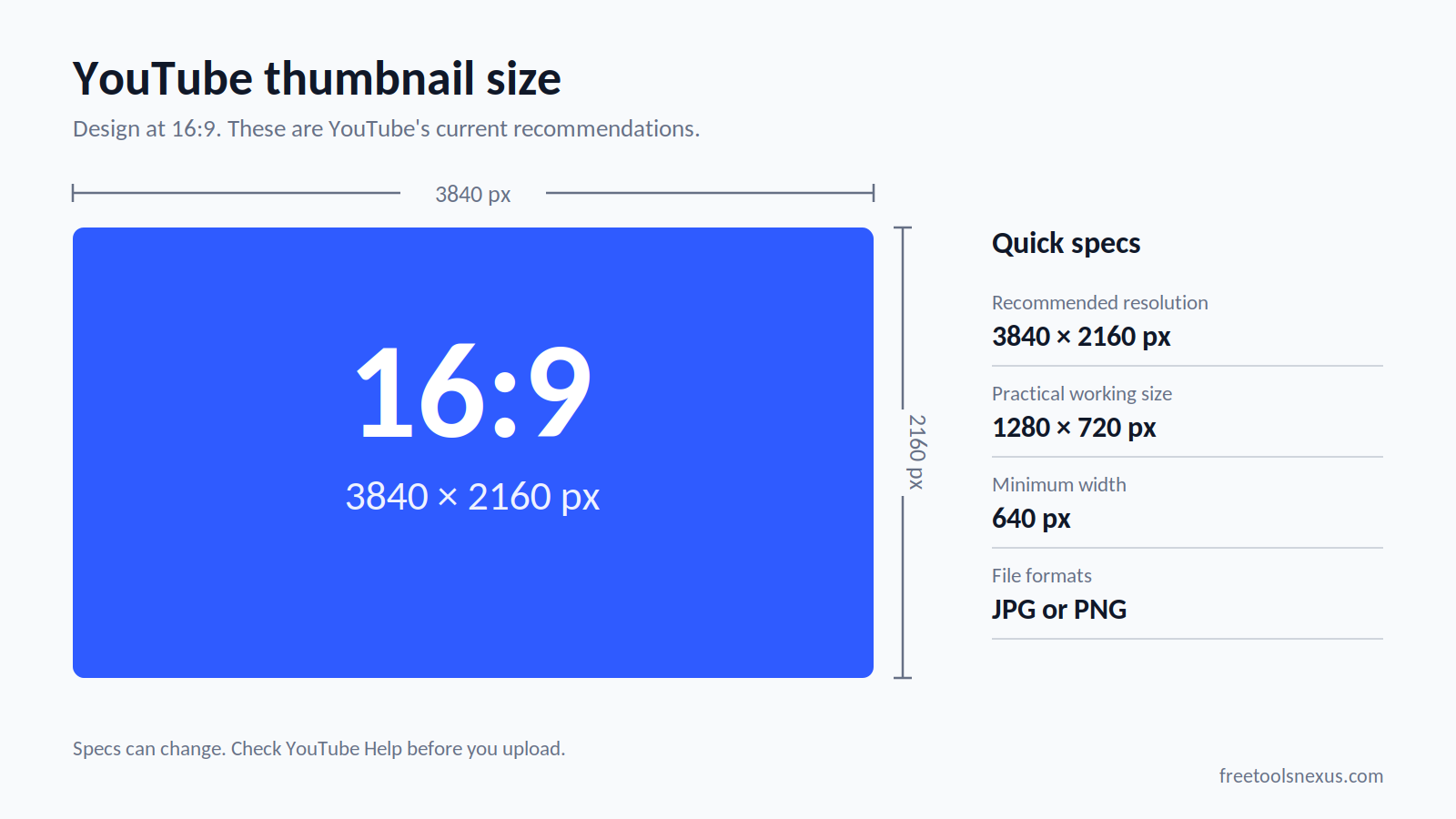
YouTube thumbnail dimensions in short: a regular video thumbnail is 3840 pixels wide by 2160 pixels tall (16:9). That is about 8.3 million pixels, or a 4K frame. How big a thumbnail needs to be depends on where it is shown, so 1920 × 1080 (about 2 million pixels) and 1280 × 720 (about 0.9 million pixels) are also common choices.
In pixels, YouTube recommends 3840 × 2160 for regular video thumbnails (width × height, 16:9) and 2160 × 3840 pixels for Shorts, with the image as large as possible. A larger source can stay sharp on high-resolution displays and in embedded players, but it may also create a larger file.
The familiar 1280 × 720 pixels size remains a valid 16:9 option and is often easier to export under mobile file limits. Choose a size based on where the thumbnail will appear and how you plan to upload it.
| Size | Pixels | When to use it |
|---|---|---|
| YouTube recommended | 3840 × 2160 | For a sharp source on large screens; export as JPG if the file is too large |
| Balanced | 1920 × 1080 | A clear everyday choice that is usually manageable as a JPG |
| Classic | 1280 × 720 | A familiar, lightweight size for many channels |
| Minimum | 640 px wide | Meets the listed minimum for regular videos, though details may look soft at larger sizes |
Keep the image at 16:9 for regular videos. A square or 4:3 image may be resized with empty space or lose parts of the composition. Resolution affects sharpness; aspect ratio determines what fits in the frame.
Aspect ratio for videos, Shorts and podcasts
Aspect ratio describes the relationship between an image’s width and height. Choose the shape for the type of content:
| Content type | Recommended ratio | Example size |
|---|---|---|
| Regular horizontal video | 16:9 | 1920 × 1080 |
| YouTube Shorts | 9:16 | 1080 × 1920 or 2160 × 3840 |
| Podcast playlists | 1:1 | 1080 × 1080 |
Vertical videos with a 16:9 thumbnail
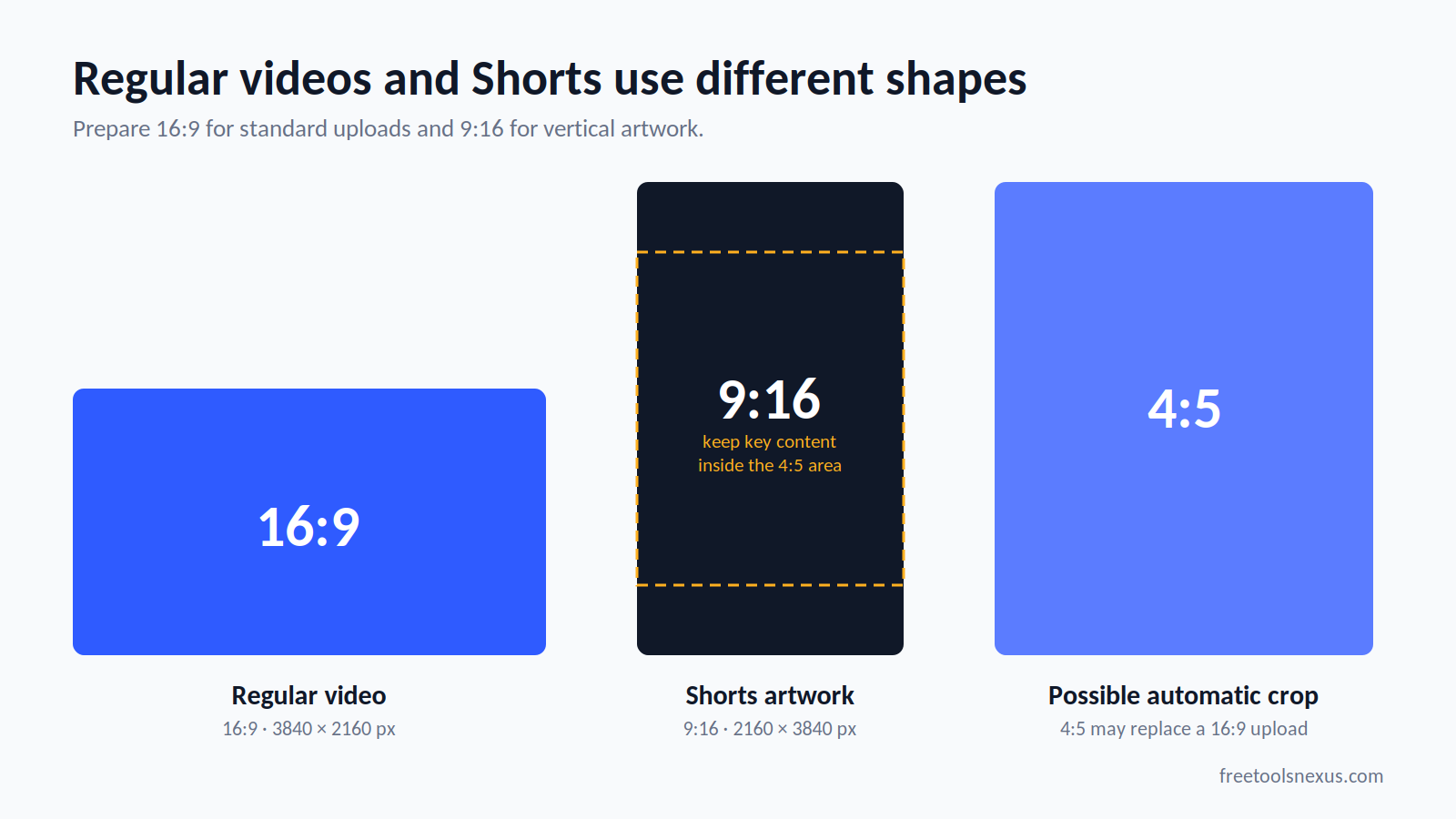
YouTube may replace a 16:9 custom thumbnail for a vertical video with an automatically generated 4:5 image on some surfaces, including Home, Explore and Subscriptions. The custom image can still appear in the watch feed, watch history and on non-mobile platforms. For vertical videos, prepare a 9:16 image and keep important details inside the central area so a crop is less likely to cut them off.
YouTube Shorts thumbnail size
The recommended Shorts thumbnail size is 2160 × 3840 pixels at 9:16. 1080 × 1920 pixels is a lighter option in the same ratio, and the minimum height is 640 pixels. JPG and PNG are accepted, with a 50 MB limit from desktop.
Custom Shorts thumbnails are currently added in YouTube Studio on a computer, and the account must be verified. Choose a video frame or upload a 9:16 image. A single clear subject is easier to recognize while viewers scroll quickly.
File size and format limits
- Formats: JPG and PNG are accepted. JPG is usually a good choice for photographs and gradients; PNG can preserve crisp text, logos and flat graphics.
- From mobile: the limit for video thumbnails is 2 MB.
- From desktop in YouTube Studio: the limit is 50 MB for video and Shorts thumbnails.
The limit depends on the upload device. A 3840 × 2160 PNG can easily exceed 2 MB, so export a photo as a JPG and check its appearance at full size. If needed, use the Image Compressor and compare the compressed result to make sure lettering and edges remain clear.
Safe zones: where to place text and faces
Even a correctly sized image can be obscured or cropped in different placements:
- Keep important details away from the lower-right corner, where the video-duration badge often appears.
- Treat roughly the outer 5 percent of each side as a margin without essential text or visual details.
- For vertical videos, center the subject so it remains visible in a possible 4:5 crop.
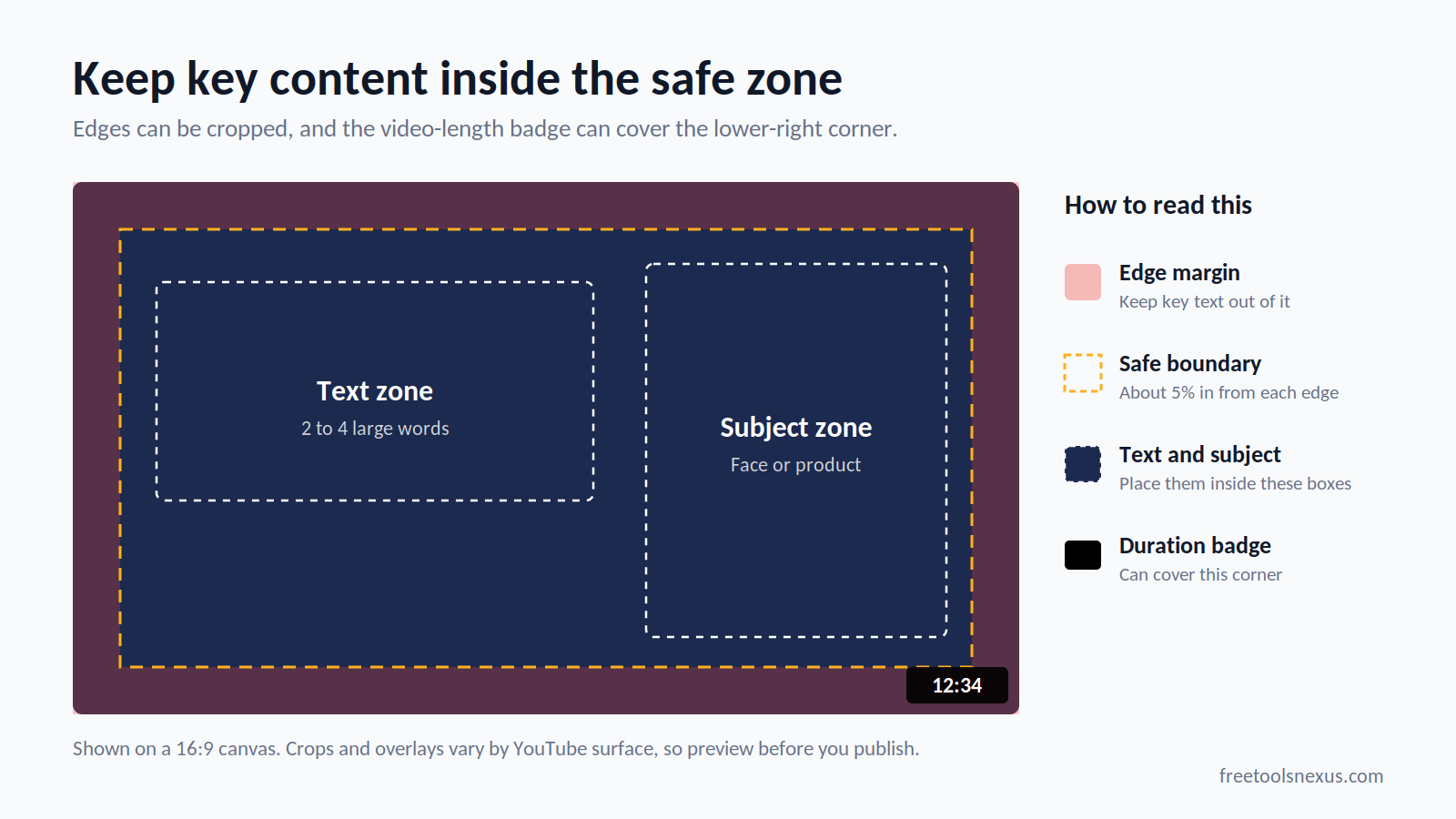
A reliable layout puts a face or product on one side and a few large words on the other, with both inside the safe area.
Design rules that keep thumbnails readable
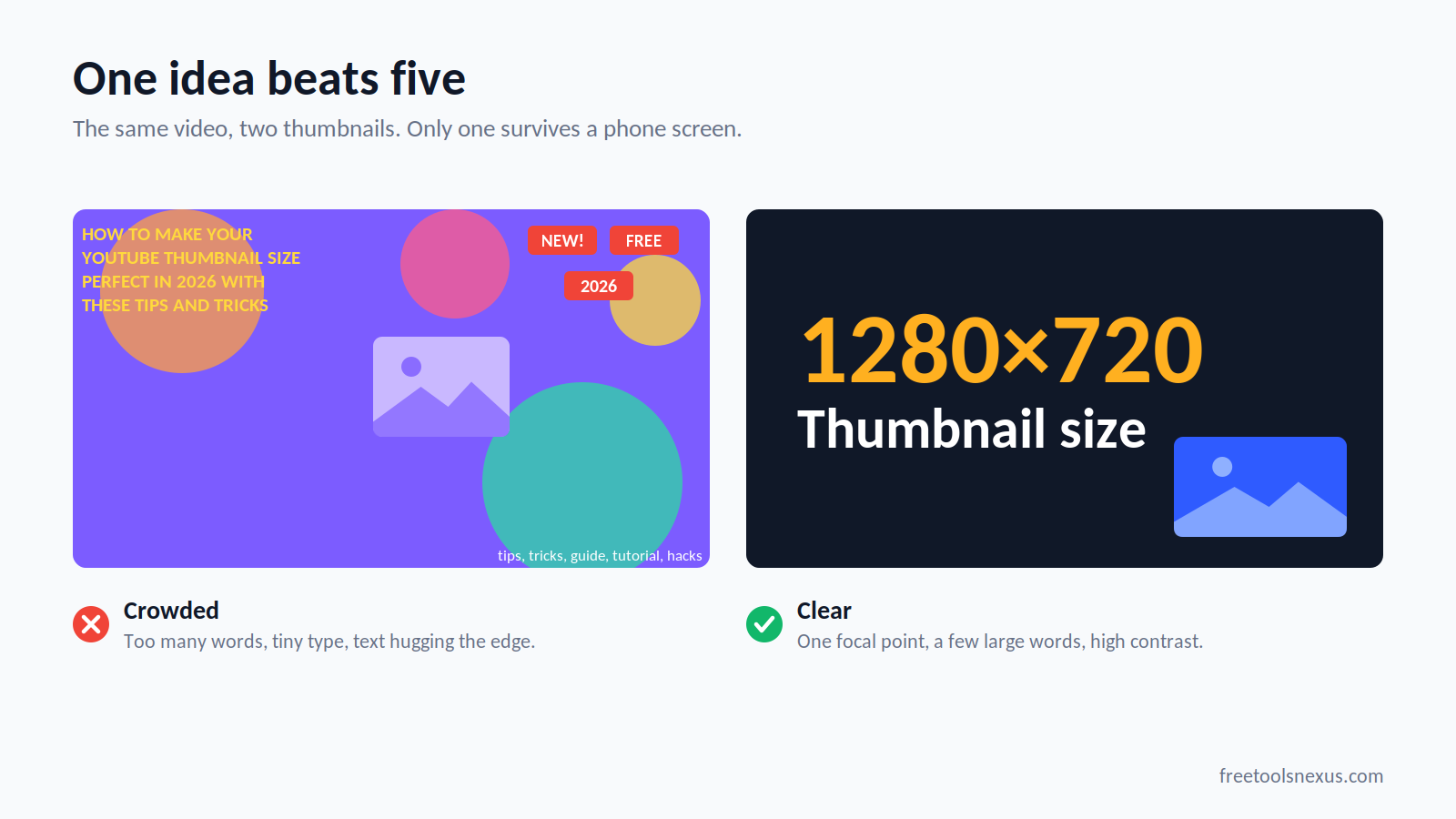
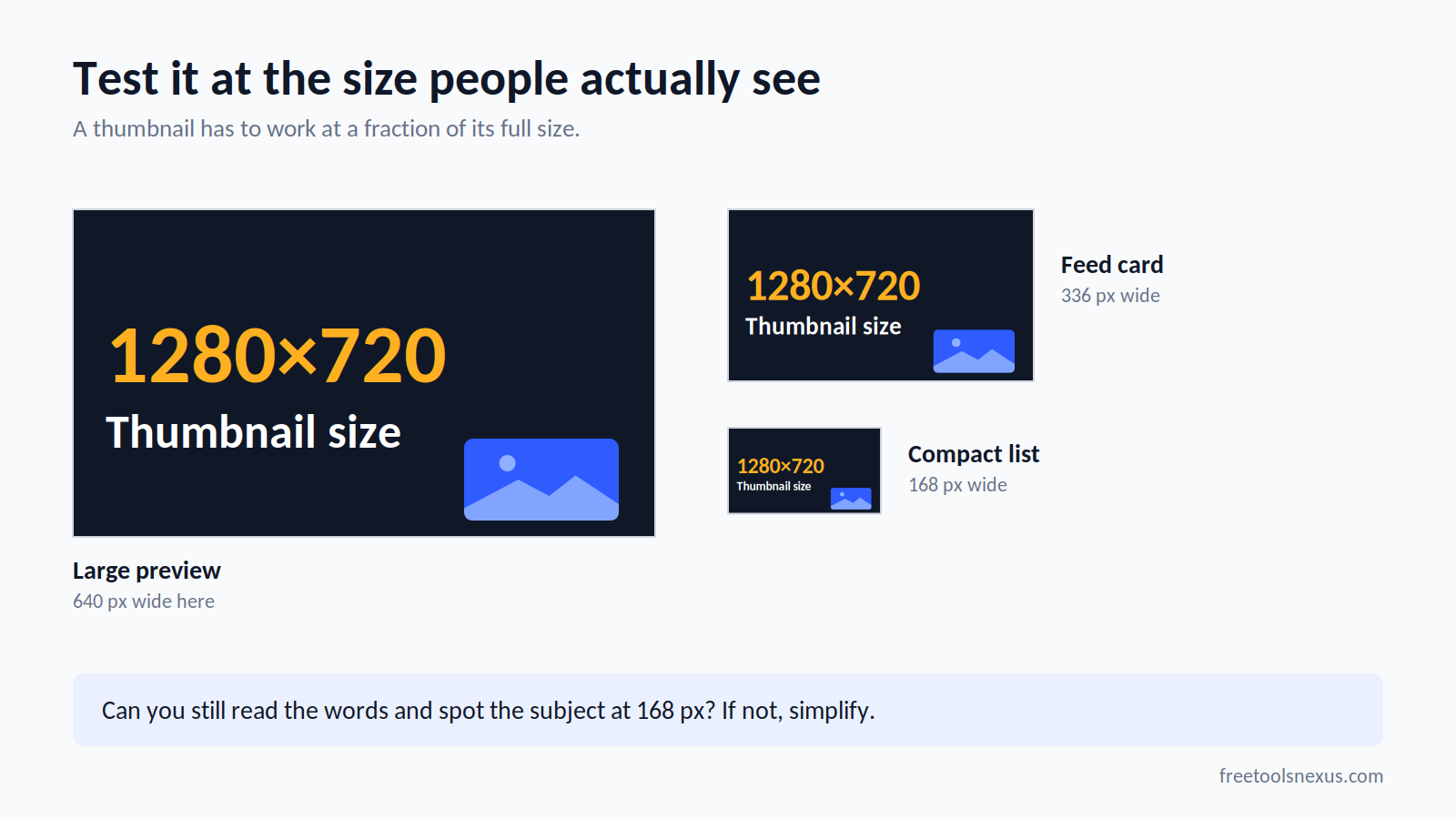
Most viewers see a thumbnail small, in a feed card or a compact list. Design for the smallest preview first:
- Use one focal point. Keep a single face, product or object prominent and remove details that compete with it.
- Use two to four large words. Let the video title provide detail; the thumbnail text should add context rather than repeat it.
- Choose high contrast. Separate text from the background with clear light-dark contrast, an outline or a subtle shadow.
- Pick bold, simple fonts. Thin or script lettering can disappear at small sizes.
- Show an action or expression. A clear face or object in use is often easier to understand quickly.
- Keep a consistent style. Reusing colours, fonts and layout can help viewers recognize a channel.
The small-size test
Shrink the design to about 168 pixels wide and view it at arm’s length. If the main subject or words are difficult to recognize, simplify the composition before uploading.
How to resize a YouTube thumbnail step by step
These four browser-based tools can prepare a thumbnail without sending the image to a server:
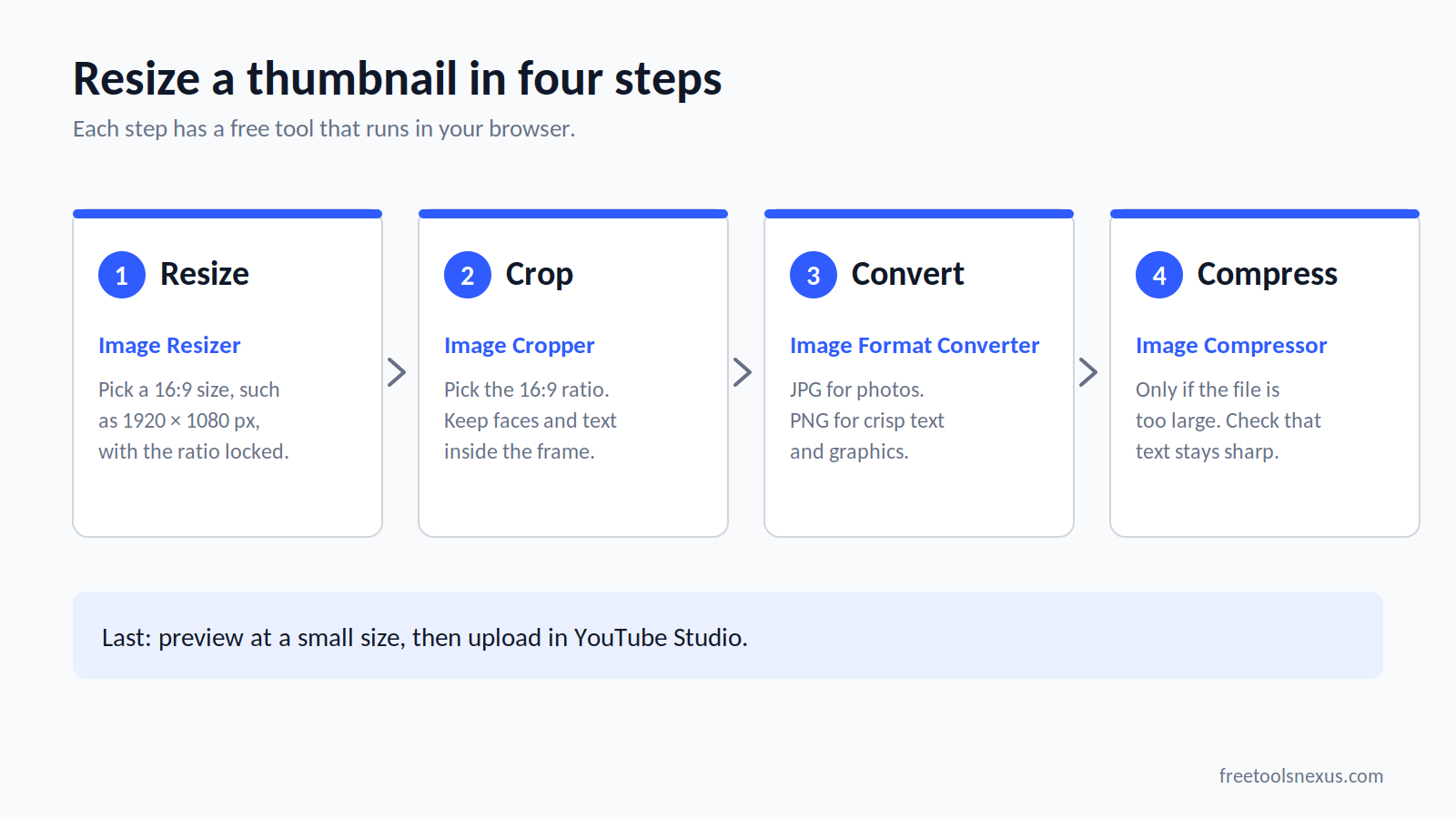
- Resize. Open the Image Resizer, choose a 16:9 size such as 1920 × 1080 pixels, and keep the aspect ratio locked to prevent stretching.
- Crop. If the source is not 16:9, use the Image Cropper with a 16:9 ratio. Position the crop so faces and text stay within the safe area.
- Convert. Use the Image Format Converter to save a photo as JPG or graphics with sharp text as PNG.
- Compress. If the file exceeds the upload limit, use the Image Compressor. Compare the result at full size to check that text is still crisp.
Then preview the result at a small size and confirm the current upload requirements in YouTube Studio.
Worked example: A 4000 × 3000 phone photo has a 4:3 ratio. Crop it to 16:9 (4000 × 2250), resize to 1920 × 1080, and export as JPG. Check the resulting file size and image quality before uploading.
How to upload and replace a thumbnail
- Sign in to YouTube Studio on a computer.
- Select Content and open the video, or choose the Shorts tab for a Short.
- Under Thumbnail, select Upload file and choose the image. For regular videos, YouTube may also offer Get suggestions.
- Select Save.
Changes can take time to appear. You can upload a thumbnail with a new video or edit it later.
Thumbnail rules and policies
Custom thumbnails must follow YouTube’s Community Guidelines. Thumbnails can be removed for policy violations, and repeated violations may affect thumbnail privileges. Also avoid artwork that promises something the video does not deliver; an accurate thumbnail helps set clear expectations.
Testing thumbnails
YouTube Studio may offer tools to test and compare thumbnails or generate suggestions, depending on channel availability. When comparing designs, change one element at a time—such as the face, colour, text or layout—so it is easier to understand what affected the results.
Common problems and fixes
| Problem | Likely cause | What to try |
|---|---|---|
| Custom thumbnail option is missing | Account is not verified | Verify the account at youtube.com/verify |
| File will not upload | File exceeds the limit for the upload device | Compress the image, export as JPG, or upload from a computer |
| Black bars appear | Image is not 16:9 | Crop to 16:9 before uploading |
| Text looks blurry | Image is too small or heavily compressed | Export at 1920 × 1080 or larger and review quality |
| Daily thumbnail limit reached | Too many thumbnail uploads in one day | Wait and try again later |
| Thumbnail does not update | The change is still processing | Wait, then refresh before uploading again |
| Vertical video shows a different crop | YouTube generated a 4:5 crop from a 16:9 image | Upload a 9:16 image with the subject centered |
Pre-upload checklist
- Use 16:9 for regular videos or 9:16 for Shorts.
- Meet the listed minimum of 640 pixels wide for regular videos or 640 pixels tall for Shorts.
- Use JPG or PNG, and stay under the 2 MB mobile limit when uploading from a phone.
- Keep important content within the margins and away from the lower-right corner.
- Use a clear focal point and a few large, high-contrast words.
- Check readability at about 168 pixels wide.
- Follow YouTube’s current policies and upload requirements.
Reference tools
- Image Resizer for exact pixel dimensions.
- Image Cropper for 16:9 and 9:16 compositions.
- Image Format Converter for JPG and PNG exports.
- Image Compressor to reduce file size.
- JPG vs PNG vs WebP guide for choosing an image format.
- Compress Images Without Losing Quality guide for more optimization tips.
Specs are based on YouTube Help’s “Add or edit a video thumbnail” guidance. Last verified October 22, 2026; check YouTube Help for current requirements.
Frequently asked questions
What is the best size for a YouTube thumbnail?
YouTube recommends 3840 × 2160 pixels at 16:9 for regular videos. A 1920 × 1080 or 1280 × 720 image in the same ratio is also practical and easier to keep under the 2 MB mobile upload limit.
What are the dimensions of a YouTube thumbnail?
The recommended dimensions are 3840 × 2160 pixels (width × height) at 16:9 for regular videos. 1920 × 1080 and 1280 × 720 pixels use the same ratio and also work well.
How many pixels is a YouTube thumbnail?
A 3840 × 2160 thumbnail has about 8.3 million pixels. A 1920 × 1080 thumbnail has about 2 million, and a 1280 × 720 thumbnail has about 0.9 million.
How big is a YouTube thumbnail?
In dimensions, 3840 × 2160 pixels is recommended. In file size, the limit is 2 MB from mobile and 50 MB from desktop, and JPG or PNG files are accepted.
What size thumbnail should I use for a YouTube video?
Use a 16:9 image, ideally 3840 × 2160 pixels or 1920 × 1080 pixels, saved as JPG or PNG under your upload limit.
What is the size of a YouTube thumbnail in pixels?
YouTube recommends 3840 × 2160 pixels (16:9) for regular videos. Common alternatives are 1920 × 1080 and 1280 × 720 pixels, and the minimum width is 640 pixels.
What is the YouTube Shorts thumbnail size?
Use a vertical 9:16 image, ideally 2160 × 3840 pixels. 1080 × 1920 pixels is a lighter option in the same ratio, and the minimum height is 640 pixels.
What is the minimum YouTube thumbnail size?
For regular videos the minimum width is 640 pixels. For Shorts the minimum height is 640 pixels.
What is the maximum file size for a YouTube thumbnail?
The limit is 2 MB for video thumbnails uploaded from a phone and 50 MB for video and Shorts thumbnails uploaded from a computer.
Should a YouTube thumbnail be JPG or PNG?
Both are accepted. JPG is usually smaller for photos. PNG keeps flat graphics and text crisp but produces larger files.
Can I upload a custom thumbnail to a Short?
Yes, with a verified account. Custom Shorts thumbnails are currently added in YouTube Studio on a computer, and a 9:16 image is recommended.
Why can't I upload a custom thumbnail?
Custom thumbnails need a verified account. Other causes are a file over your device's size limit, the daily upload limit, or thumbnail privileges removed after a policy violation.
Try the tools in this guide
- Image Resizer Resize images by exact pixels, a percentage, or a social-media preset — with aspect-ratio lock and batch ZIP output, all in your browser.
- Image Cropper Crop an image with a draggable box and aspect-ratio presets, rotate and zoom, and export at full resolution — privately in your browser.
- Image Format Converter Batch convert images between JPG, PNG, WebP and AVIF — with quality control, resizing and ZIP download, entirely in your browser.
- Image Compressor Reduce image file size with an adjustable quality slider — processed entirely on your device.
Related guides
- JPG vs PNG vs WebP: Which Format to Use JPG, PNG and WebP compress images differently. Learn how each one works, where each fits best, and how to convert between them in your browser.
- Compress Images Without Losing Quality Shrink image files for email, uploads and websites while keeping them sharp. Learn what makes files large and the settings and order of steps that help.
Related tools
- JPG to PNG Converter Convert JPG (JPEG) images to lossless PNG — privately in your browser, one file or a whole batch.
- PNG to JPG Converter Convert PNG images to smaller JPG (JPEG) files, choosing a background colour to replace transparency.
- WebP to JPG Converter Convert WebP images to universally-compatible JPG (JPEG), with a background colour for any transparency.